Guide
How Rentora works
Real screens, step by step: from signing up to the lease and the monthly payments.
The full video: from the listing to the lease
Captions in the video are in Georgian, no sound.

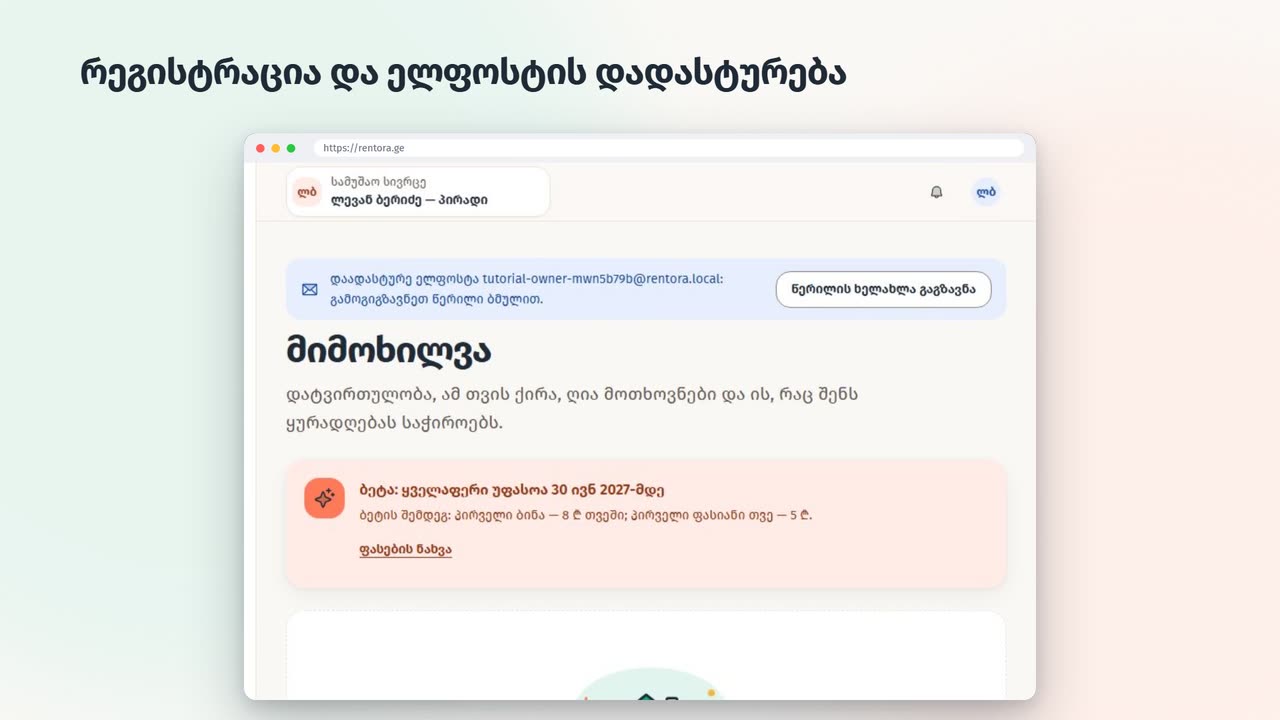
Sign up and sign in
On the home page choose “I rent out an apartment” and create an account.
- 1Enter your name, email and a password (at least 8 characters).
- 2You get an email: press “Confirm email”.
- 3Next time, sign in with the same email and password.
- 4Forgot the password? “Forgot your password?” on the sign-in page.
Adding an apartment
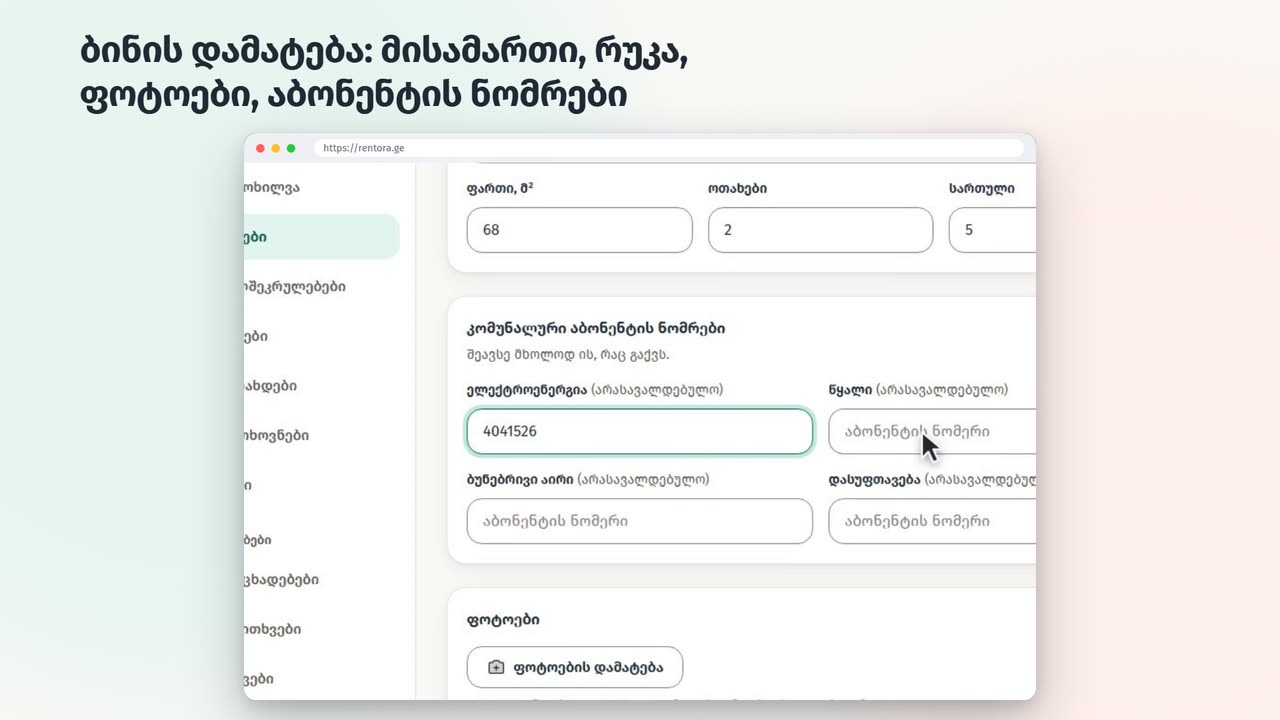
An apartment is added once; its listing and leases are built on it.
- 1“Apartments” → “Add an apartment”: choose the district, type the street and number.
- 2“Find the address on the map”: check the pin and press “The place is right”.
- 3Area, rooms and floor.
- 4Utility account numbers: the tenant sees them on their page.
- 5Add photos and save.
Publishing a listing and the review
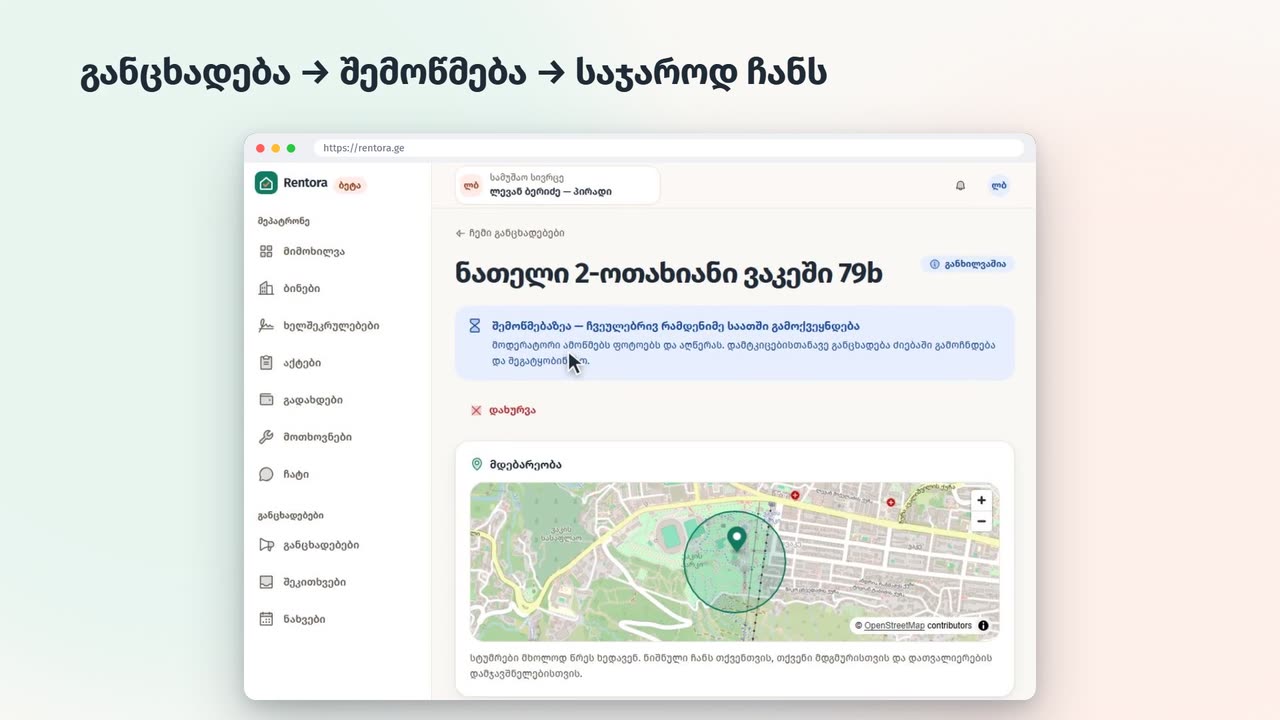
Listings are free. A new account's listing is checked by a moderator first.
- 1On the apartment's page press “Publish a listing”.
- 2Enter the price, the minimum term and a description; tick the amenities.
- 3“Send for review”: usually published within a few hours.
- 4If rejected, the reason is on the listing's page (for example a phone number in the text, someone else's photos). Fix it and send again.
- 5Once approved, the listing shows in search and on the map.
Messaging tenants
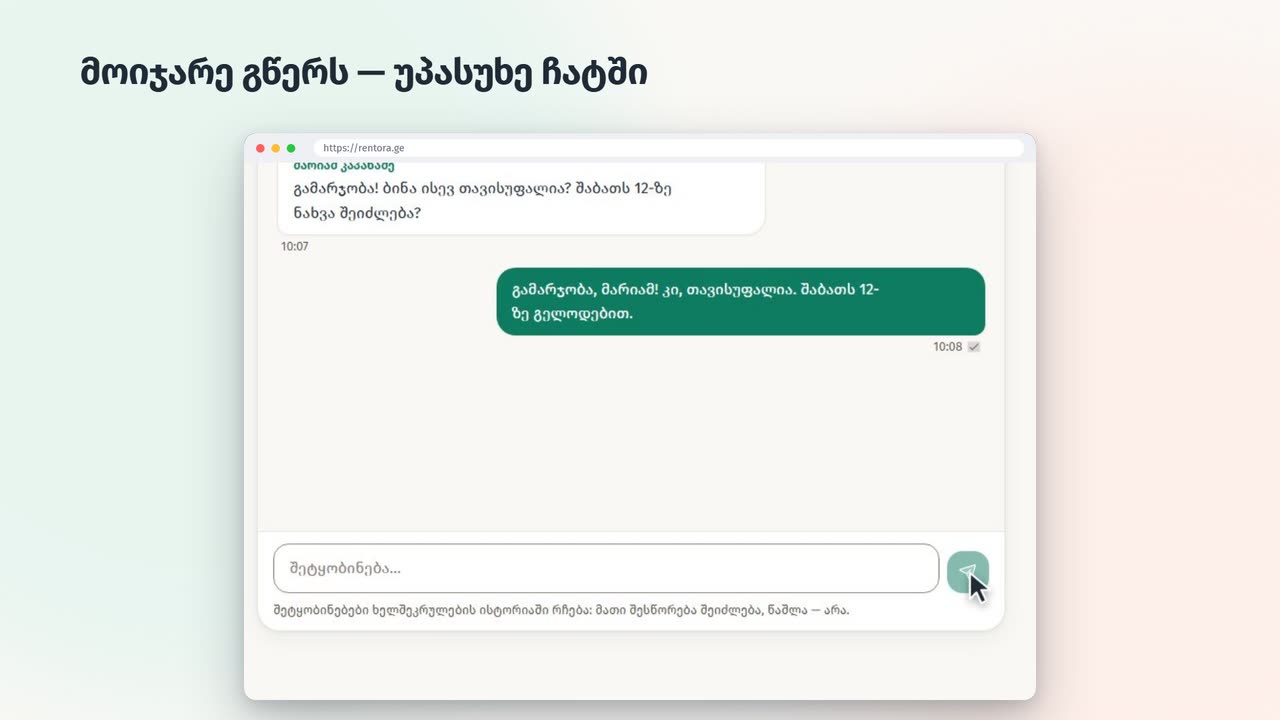
Tenants write to you straight from the listing; you don't have to share your number.
- 1A new message brings a notification (and an email, if turned on).
- 2“Inquiries” → open the conversation and reply.
- 3Agree on a viewing time right there in the chat.
Creating the lease and inviting by email
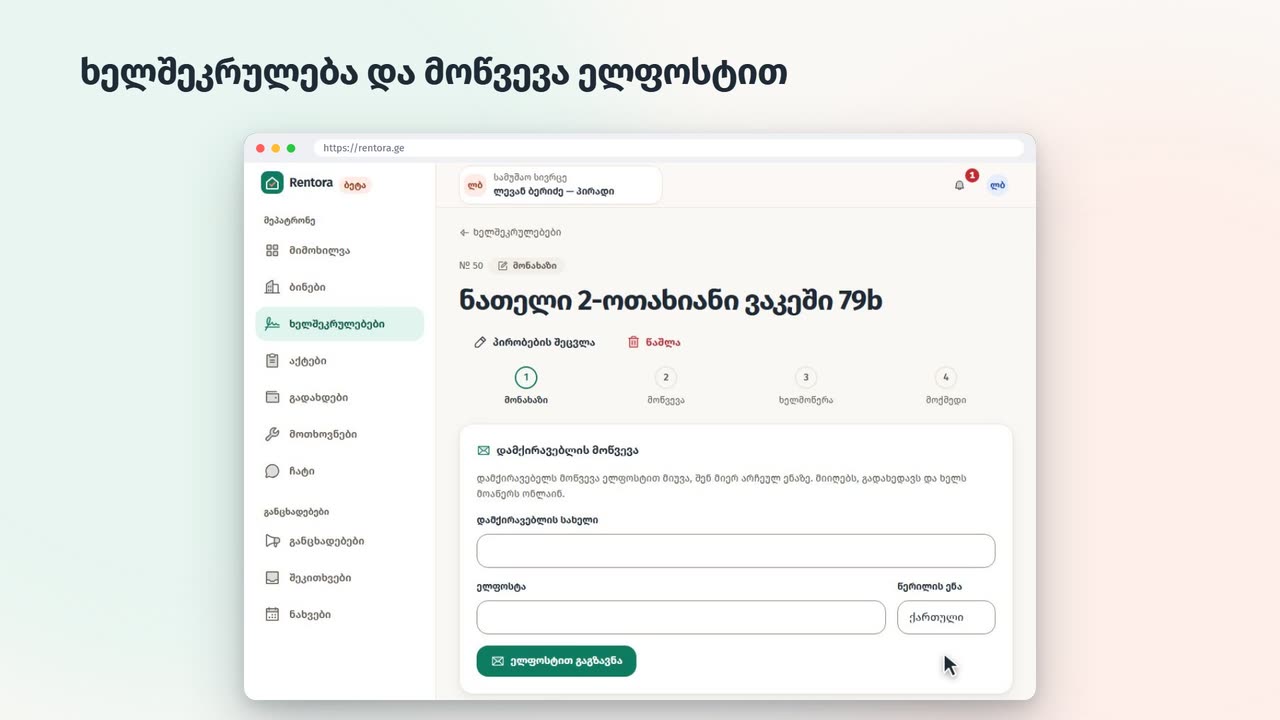
The lease is filled from the apartment's details; the invitation goes to the tenant by email.
- 1On the apartment's page, “Create a lease”.
- 2Dates, rent, deposit, payment day and who pays the utilities.
- 3Review the lease text.
- 4Enter the tenant's name and email → “Send by email”.
- 5If needed, “Copy the link” or “Send again”.
Signing
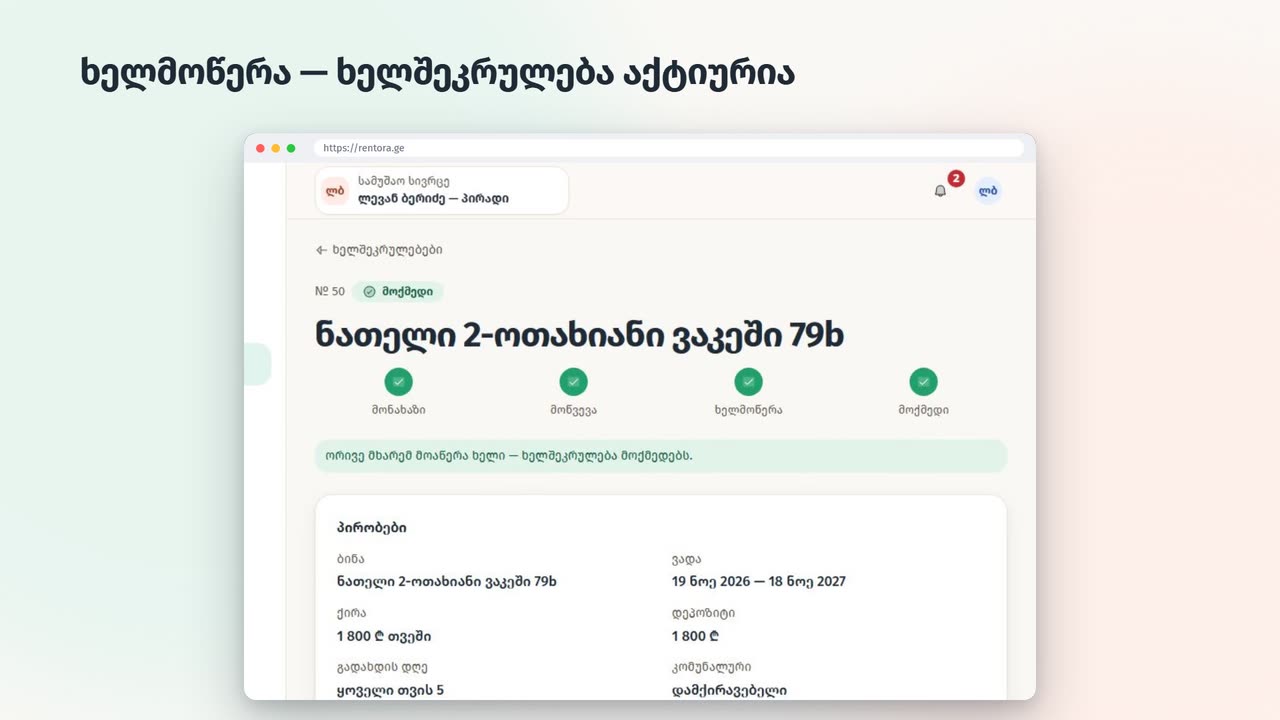
Both sign online; after that the text never changes.
- 1The tenant accepts and signs; you get a notification.
- 2On the lease page tick the consent and type your full name.
- 3“Sign”: the lease is active, the PDF downloads.
The move-in report with photos
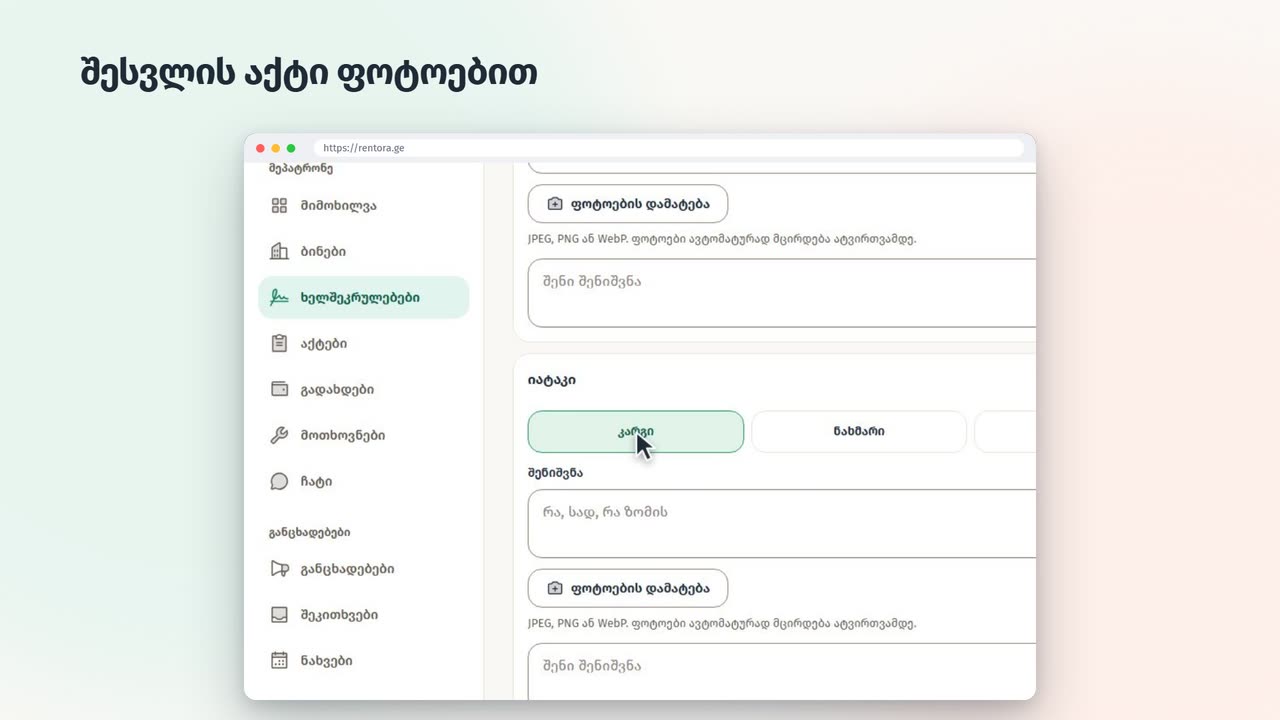
The report protects both: what state the apartment was in at move-in.
- 1On the lease page, “Start the move-in report”.
- 2Rate room by room: good, worn or damaged.
- 3Add photos and notes.
- 4“Share with the tenant”: the tenant reviews and confirms.
- 5Once confirmed, the report locks and can't be changed.
Rent and utilities
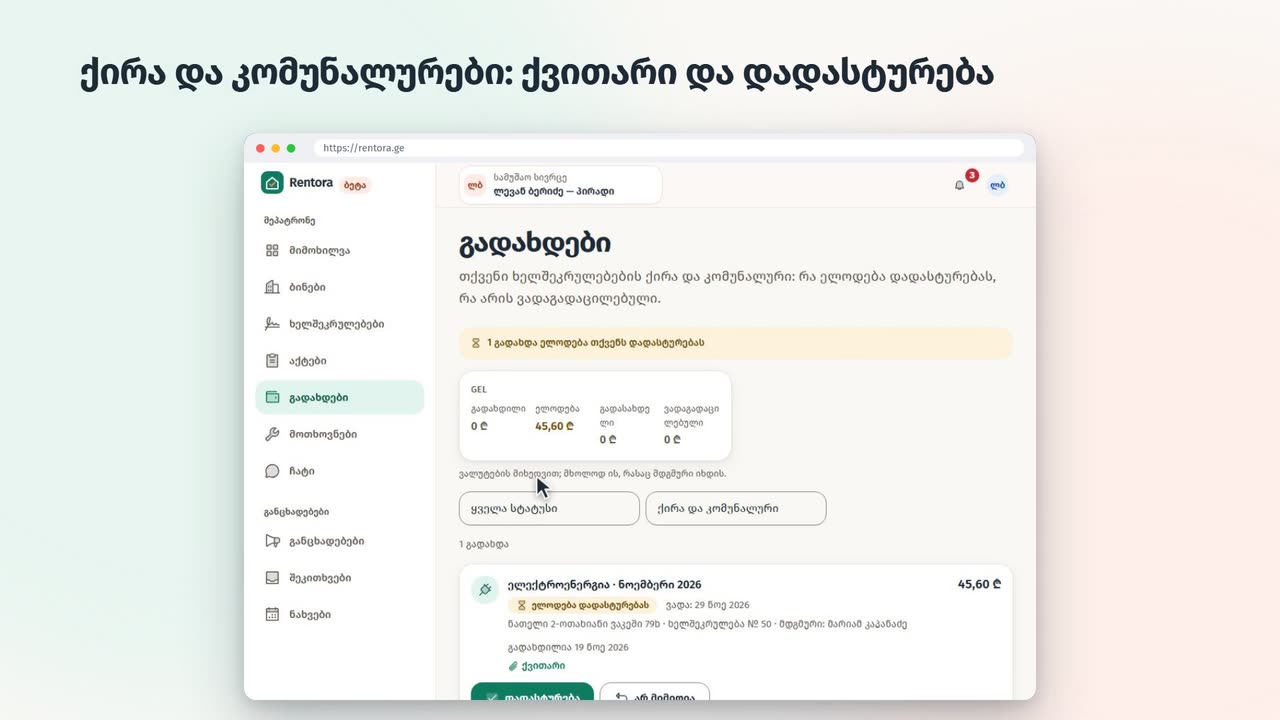
The money comes straight to you; Rentora keeps the record and the reminders.
- 1Rent appears automatically 3 days before it's due.
- 2Utilities: “Add a utility bill” on the lease page: service, month, amount.
- 3The tenant marks it paid and uploads the receipt.
- 4“Payments” → “Confirm” when the money arrived.
- 5Both see what's overdue; the history is kept.
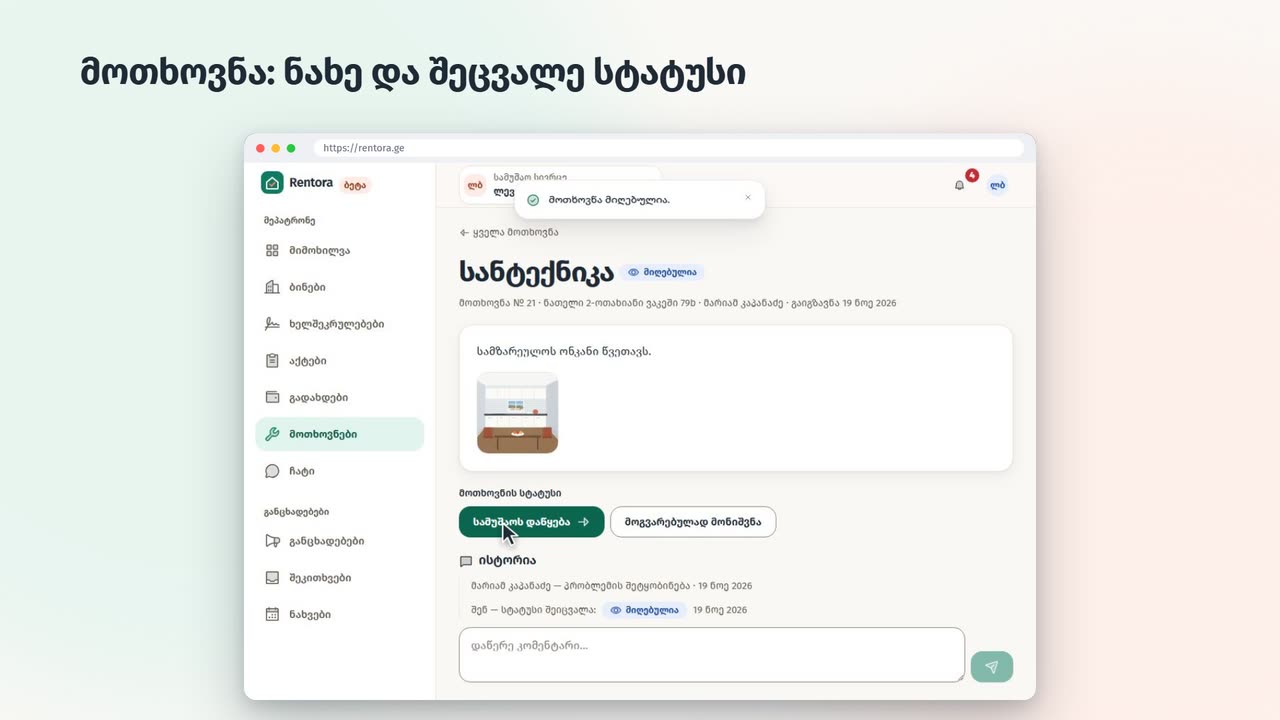
Requests (repairs)
Something broke? The tenant sends a request with a photo.
- 1A new request brings a notification.
- 2“Requests” → open it, see the photos and description.
- 3Change the status: acknowledged, in progress, resolved.
- 4Write a comment; it all stays in one history.
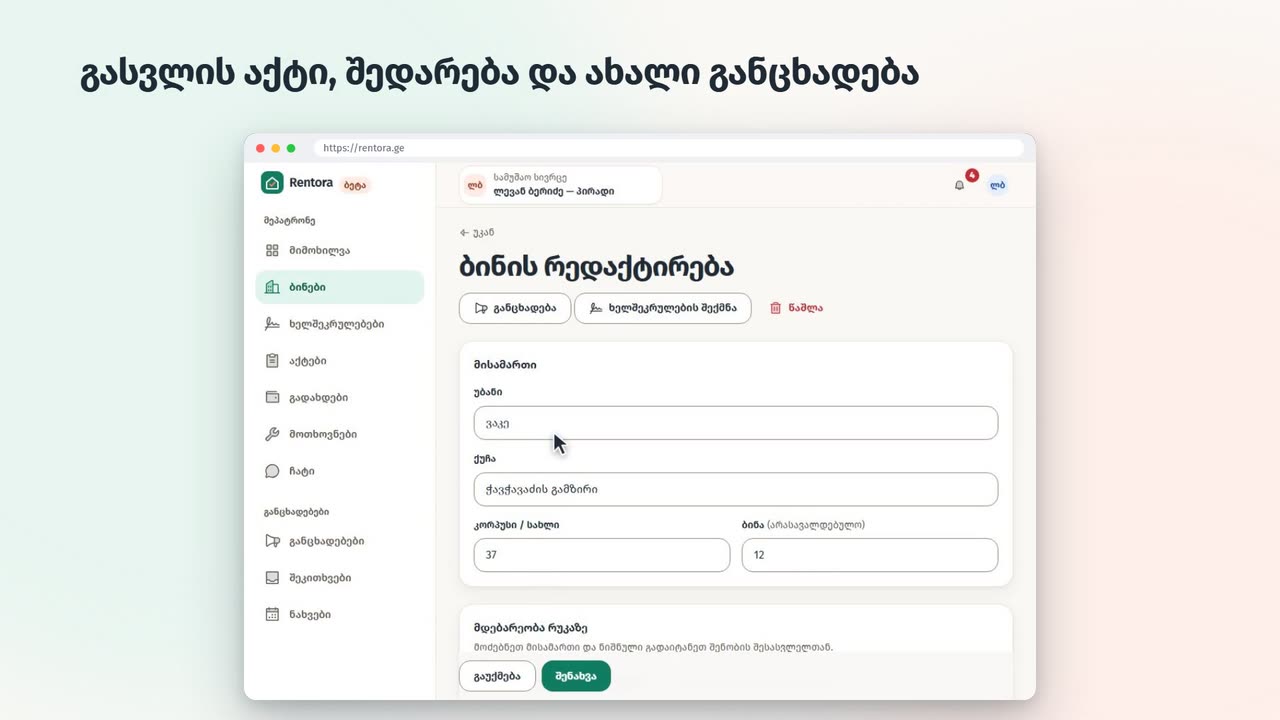
Moving out and a new listing
The move-out report is compared with the move-in one; then the apartment is listed again.
- 1On the lease page start the move-out report (it copies the move-in one).
- 2Rate what changed and add photos.
- 3“Compare” shows what changed: a basis to agree on the deposit.
- 4On the apartment's page, “Publish a listing”: the details are already filled in.
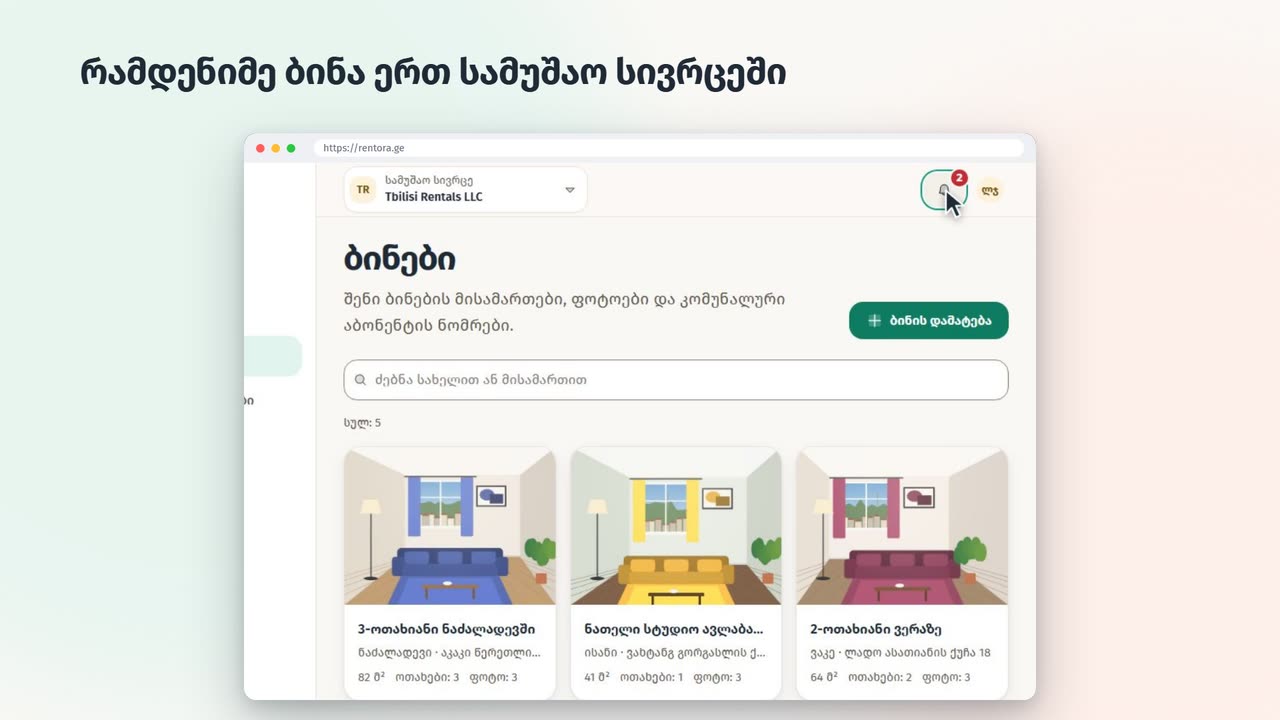
Managing several apartments
All apartments, leases and payments in one workspace.
- 1“Overview”: payments, requests and what needs attention.
- 2“Apartments”: every apartment and its status.
- 3For a company: create an organization and invite colleagues.
- 4Switch workspaces from the top menu.
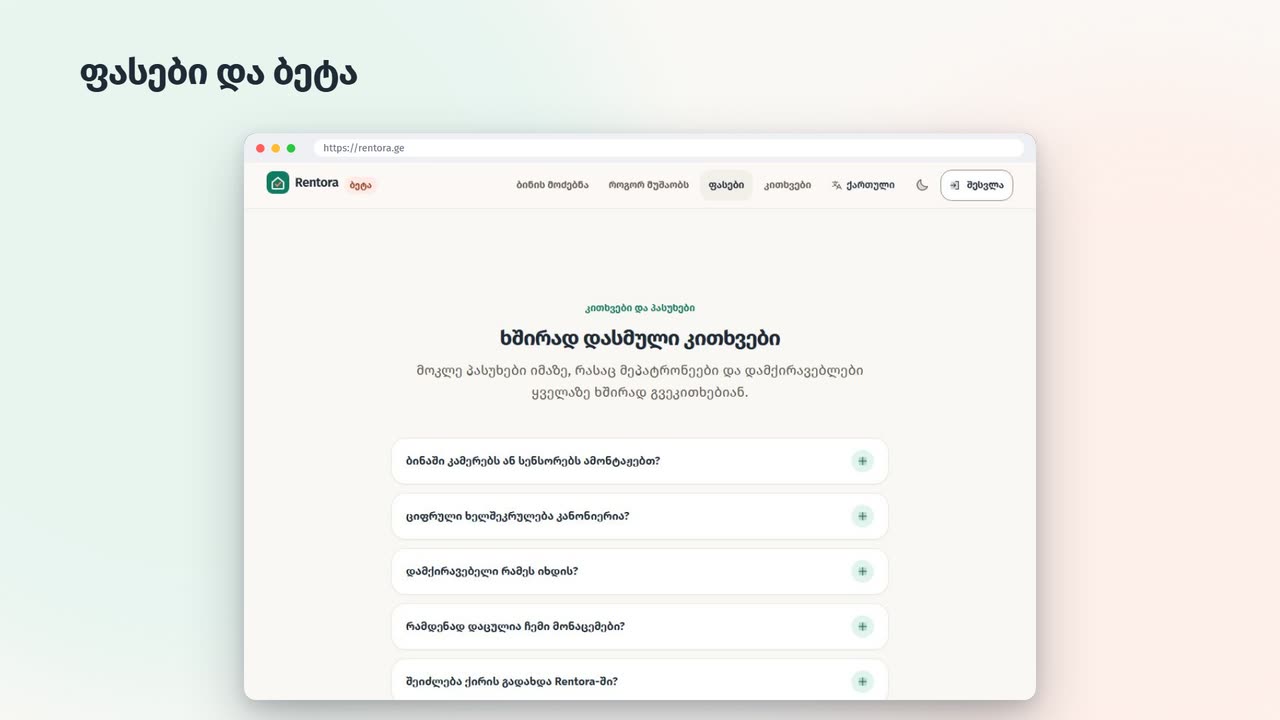
Prices and the beta
During the beta everything is free; afterwards the price depends on the number of apartments.
- 1The pricing page shows the bands and when the beta ends.
- 2Listings and the tenant's account are always free.
- 3No card needed; we tell you before the beta ends.
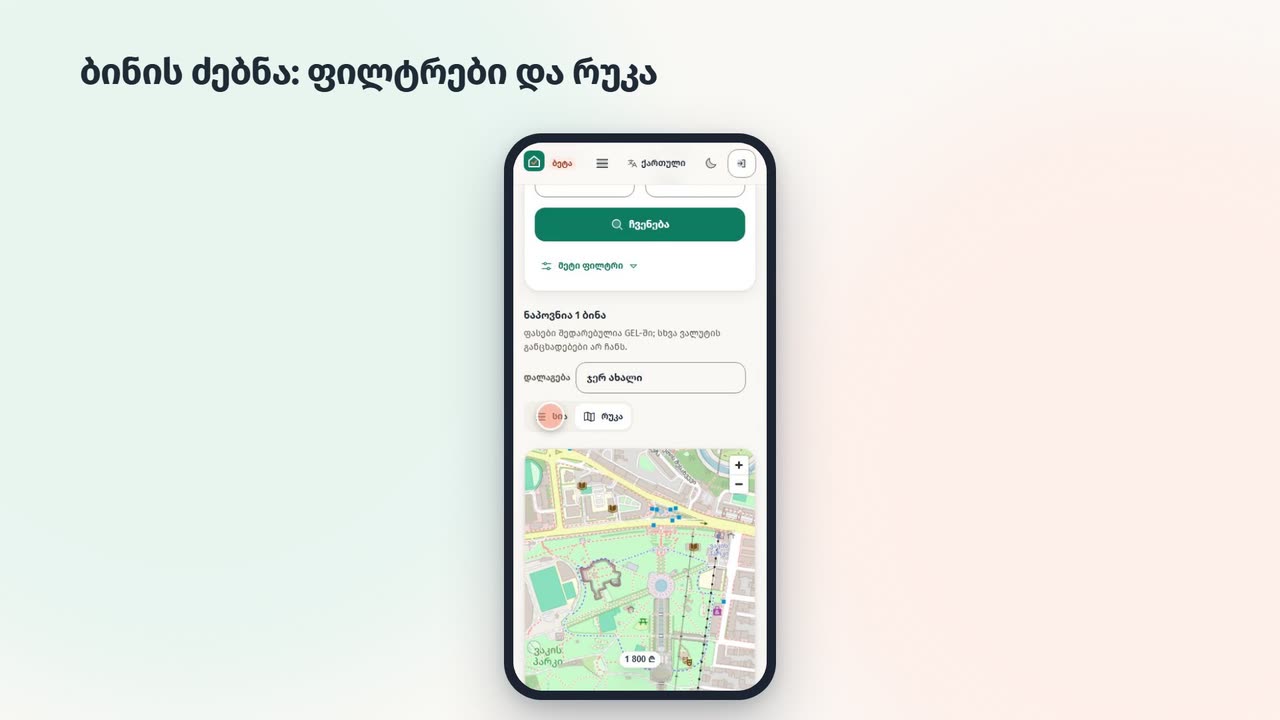
Finding an apartment
Listings without agency fees, with real details.
- 1“Find a place”: choose the district, rooms, price.
- 2“Map” shows the apartments on the map.
- 3Open a listing: photos, terms, district.
- 4The owner gives the exact address for the viewing.
Writing to the owner
Write straight from the listing; the reply comes in the app and by email.
- 1Press the message button on the listing (the account is free).
- 2Write what you'd like to know and when you can view it.
- 3The conversation stays in “Chat”.
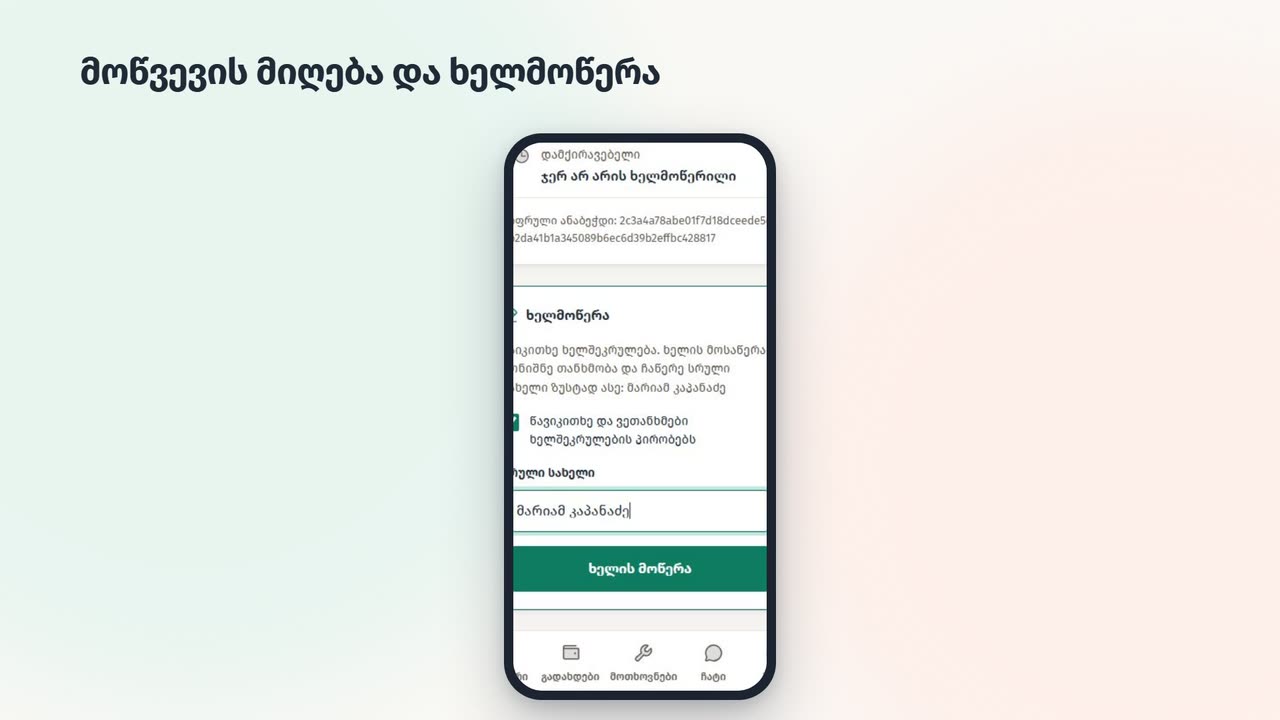
Accepting the invitation and signing
The owner sends the invitation by email; you sign online.
- 1Open the email and press “View the lease”.
- 2Create a free account or sign in.
- 3Accept the invitation and read the terms.
- 4Tick the consent, type your full name and sign.
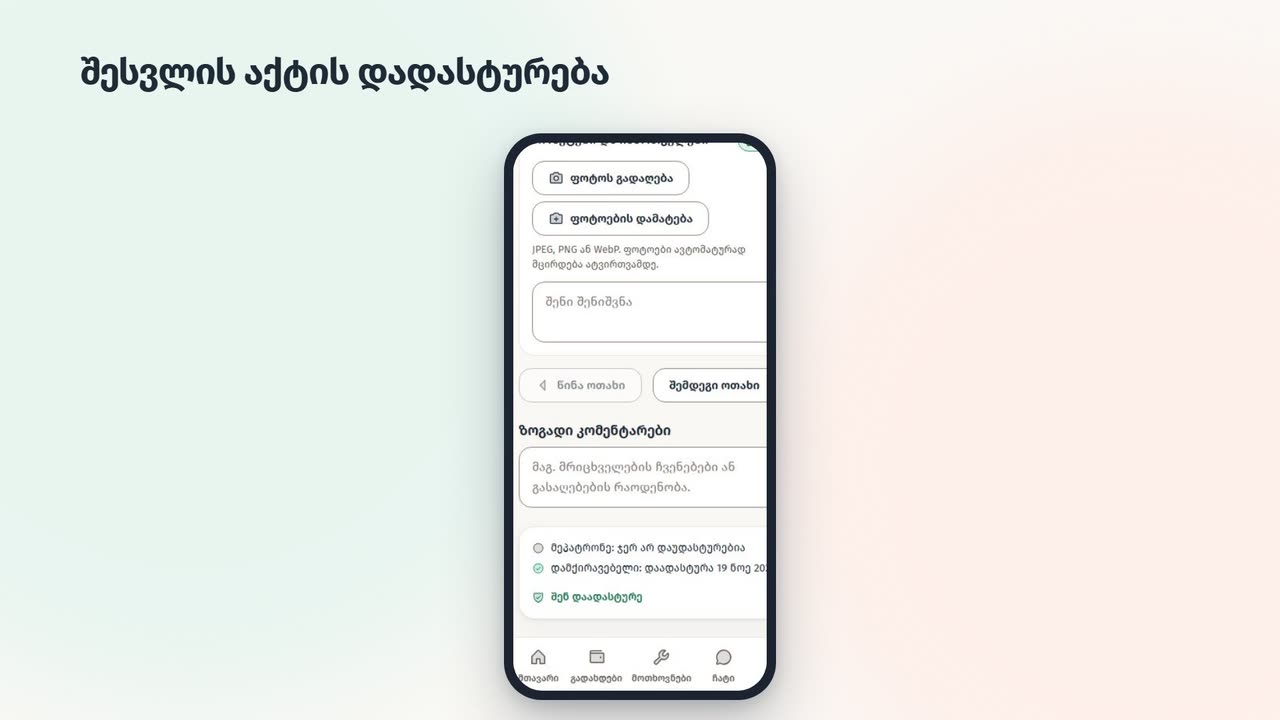
Confirming the move-in report
The report is your evidence at move-out, for the deposit.
- 1The owner shares the report; you get a notification.
- 2Go through it room by room: ratings and photos.
- 3Something doesn't match? Add your photo or a comment.
- 4“Confirm the report”: it locks.
Payments and utilities
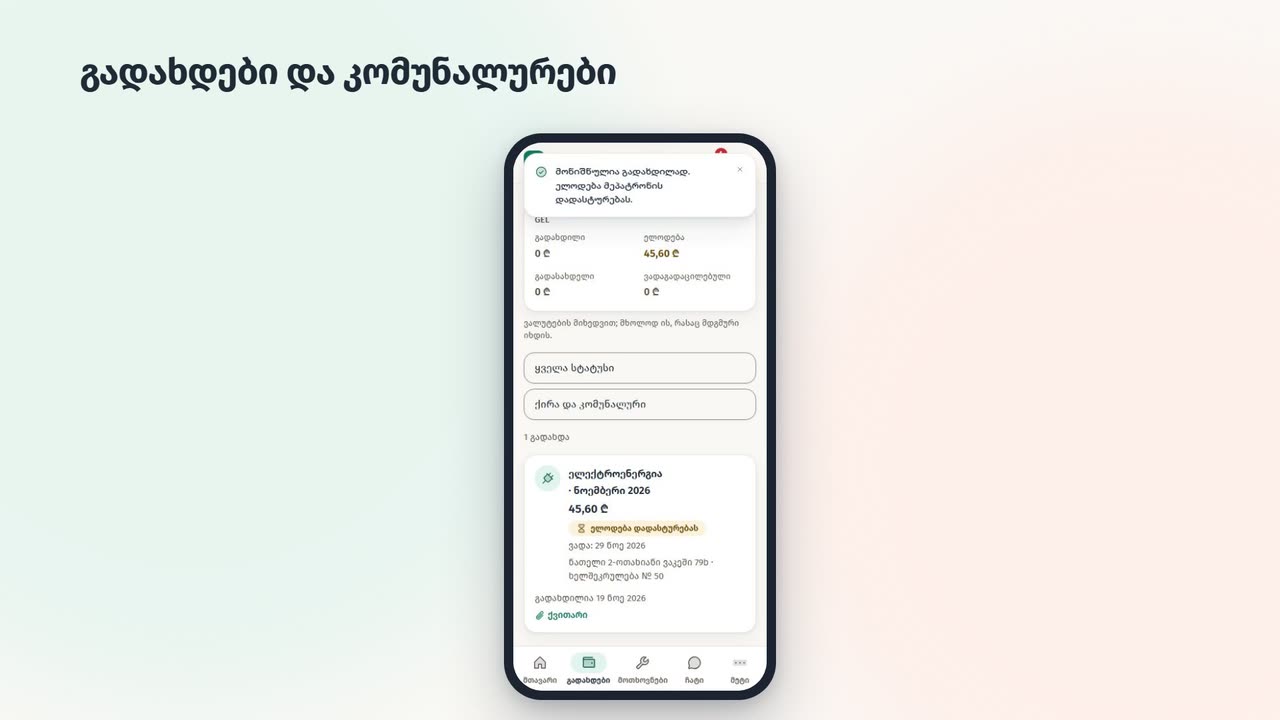
Every payment in one list, with receipts.
- 1“Payments”: what's due and when.
- 2Pay the way you agreed (transfer, cash).
- 3Press “I paid” and upload the receipt.
- 4The owner confirms; the history stays with both of you.
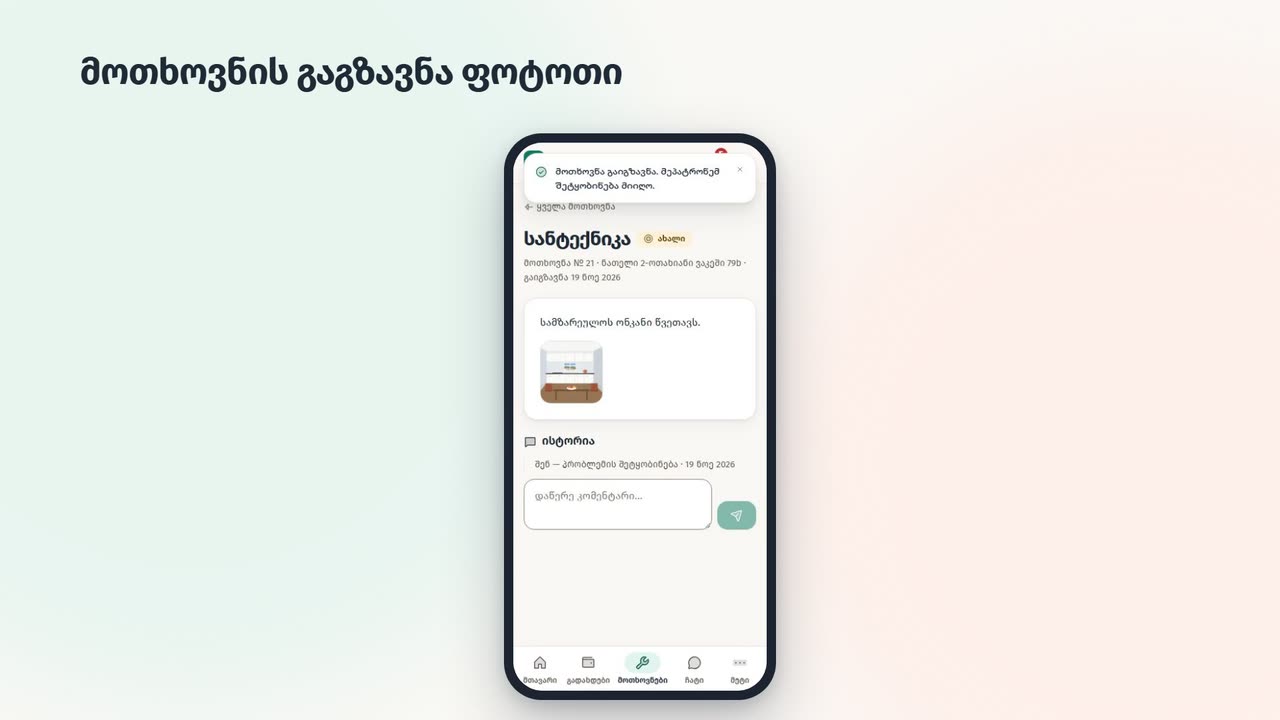
Sending a request
Something broke? A request with a photo, its status always visible.
- 1“Requests” → “New request”.
- 2Choose the category and urgency, describe the problem.
- 3Add a photo and send.
- 4The owner's reply and the status show on the request's page.
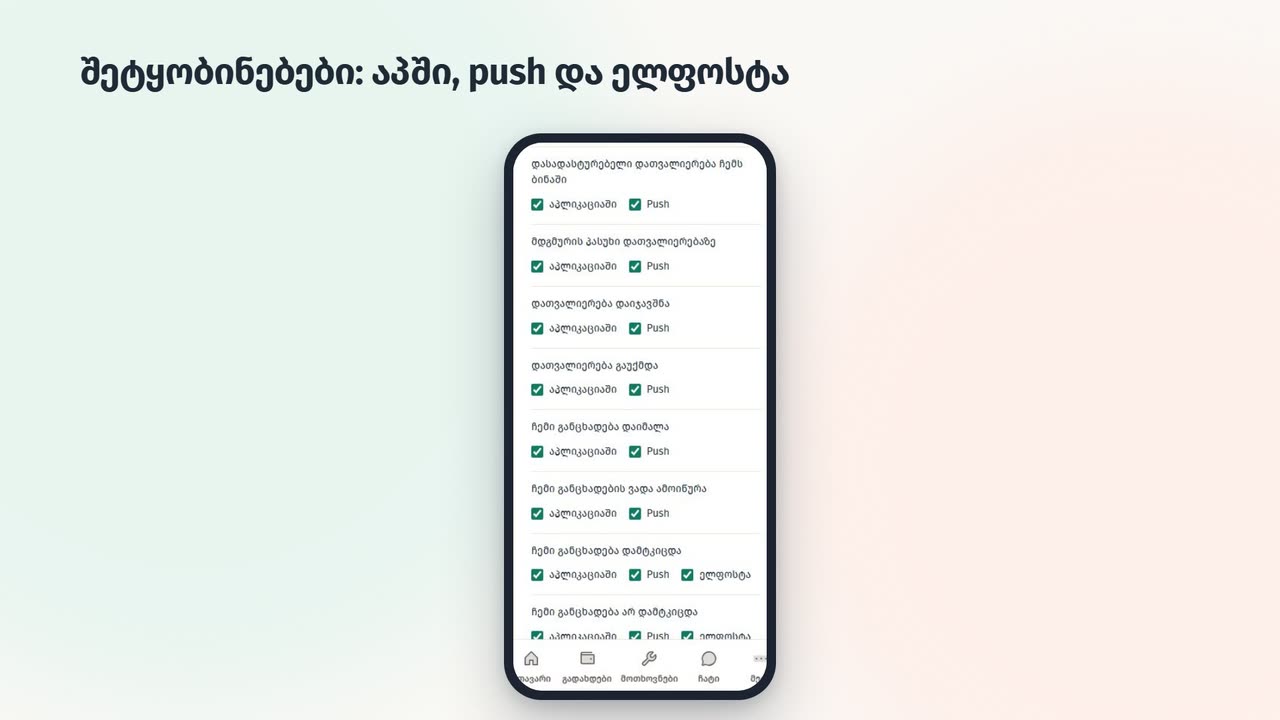
Notifications
You won't miss anything: in the app, on your phone (push) and by email.
- 1The bell shows every notification.
- 2Turn on push: it reaches your phone even when the app is closed.
- 3In the settings choose what you want in the app, by push and by email.
Questions
Frequently asked questions
Is Rentora free?
During the beta everything is free for owners. Posting listings and the tenant's account are always free.
What will it cost after the beta?
The price depends on how many apartments you manage. The exact prices and the end of the beta are on the pricing page; beta users are told in advance.
Does Rentora take the money?
No. The tenant pays the rent and utilities straight to the owner, as before. Rentora only keeps the record: what, how much, when, with the receipt and the confirmation.
Is my data safe?
Data is stored on our servers and sent over an encrypted connection. The exact address of an apartment is never public, only the district. Details: the privacy policy.
Can someone steal my photos?
Public listings show a smaller copy with a watermark; only you and the moderator see the original. New photos are checked against other listings.
Is the lease legally binding?
Both sides sign electronically (with consent and their full name); the text is stored unchanged and downloads as a PDF. Legal force depends on the circumstances; for important matters, we recommend asking a lawyer.
What if my tenant doesn't use Rentora?
An owner can manage apartments and listings alone. Signing online, the report and the payment record need the tenant's free account, created in a minute from the invitation link.
How do I delete my account?
Write to hello@rentora.ge from your account's address: we delete it and confirm by email. A lease already signed stays with the other side as a signed document.
How do I contact you?
Write to hello@rentora.ge, or use the feedback button on the site.